
By John Cookie · Published 4 October 2026
A practical workflow for website owners, PPC teams and developers who need to check whether Google consent signals match the visitor’s choices.
Download the worksheet
A blank, editable text template for recording your test conditions, evidence, findings and retest actions. Open it in your text editor or paste it into your project notes. No sign-up required.
Download consent mode v2 testing worksheet (TXT)Version 4 October 2026. Blank fields are not a pass; record what was tested and what remains unknown.
Prepare a repeatable test
Start with one public URL and one question: does the Google setup receive the choice the visitor actually makes? Note the page, date, browser, consent platform and published tag-manager version. Keep any preview changes separate from the published website.
Use a fresh browser profile or clear this site’s consent state between independent runs. Record extensions and browser privacy settings that might affect the result. Test a representative landing page and the agreed conversion journey, using test data rather than real customer information.
Inspect the default and update
Connect your website in Google Tag Assistant. Select the earliest Consent event and inspect the API Call or Consent output. Check analytics_storage, ad_storage, ad_user_data and ad_personalization. Defaults must be established before tags use consent. Then compare the latest event after a banner choice. In GTM, examine the Tags view for consent checks and firing behaviour. These steps follow Google’s troubleshooting documentation.
If connection fails while Google tags are blocked, record that condition. Acceptance may allow connection. Inspect the earlier events when available; use browser storage and network evidence to examine the blocked stage. A failed connection alone is not proof that consent is broken.
Consent test worksheet
Copy this matrix into your test notes. Record actual values rather than filling every row with an assumed “pass”. The expected outcome should come from your agreed configuration and policy.
| Run | Action | Record |
|---|---|---|
| Fresh visit | Do not touch the banner | Default values, event order, tags and storage before a choice |
| Reject | Reject optional categories | Latest consent values, newly written cookies, subsequent requests |
| Accept | Accept the relevant categories | Changed values, firing sequence and test event |
| Custom choice | Allow analytics only, if offered | Whether analytics and advertising choices remain separate |
| Change mind | Withdraw an earlier choice | Update values, later events and persistence after navigation |
| Return visit | Reload and visit another page | Saved choice and values used before new tags run |
Live example: CookieBanner, 4 October 2026
We connected Google Tag Assistant to the CookieBanner homepage in a browser session that already had a saved analytics-only choice. This is a dated observation of our own site, not a client audit or a clean first-visit test.
In event 1, Consent Default, the on-page defaults for analytics_storage, ad_storage, ad_user_data and ad_personalization were all Denied. In event 3, Consent Update, analytics_storage was Granted; the three advertising signals remained Denied. Record both the event and the column when comparing a default with an update.
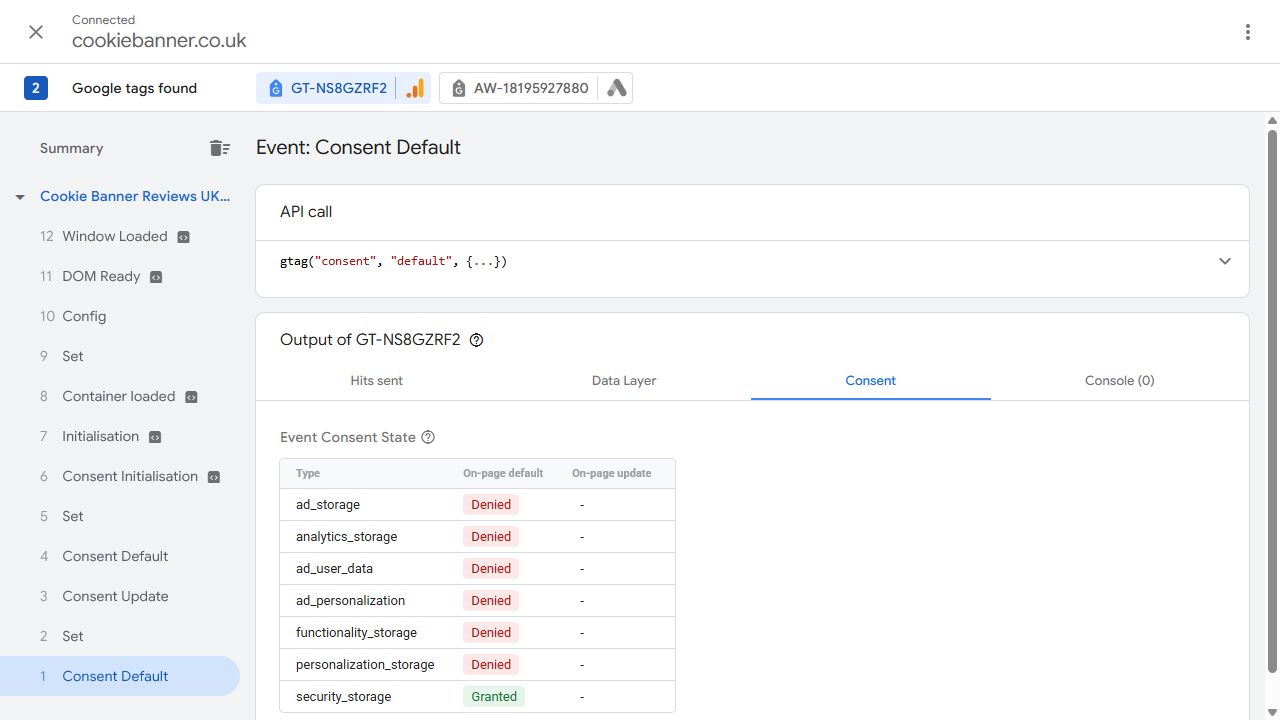
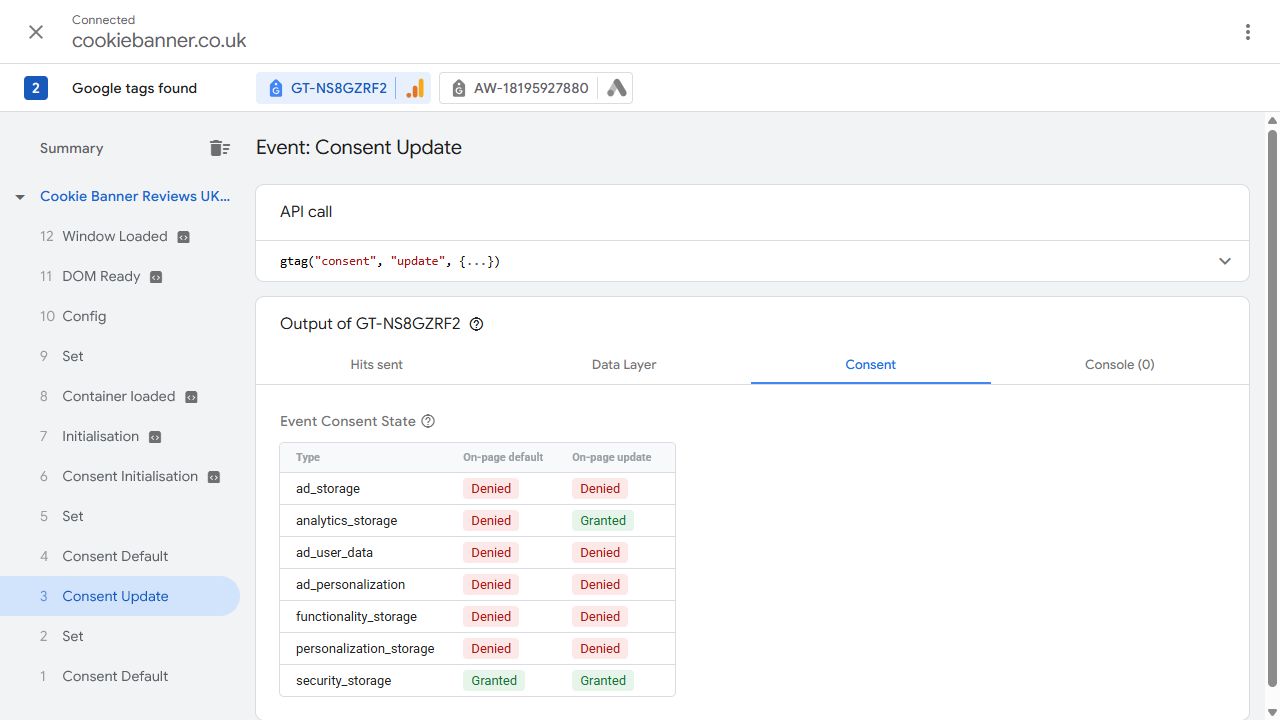
Limits: these two captures show consent signals for the selected Google tag and events. They do not establish all tag behaviour, new cookie writes, network payload contents, conversion accuracy or every visitor journey. Further defaults and events were present in the timeline and should be reviewed in a complete audit. Preview mode, the logged-in WordPress session and saved preferences can affect a test; reset and record these conditions before reproducing it.
Interpret the evidence
An update that arrives after a tag has already acted is a different problem from an update that never arrives. Investigate timing and the banner-to-tag connection separately. If category choices all produce the same values, inspect the mapping. If only a second page fails, check whether that template loads another installation.
Do not treat a visible request as proof of cookie storage. Basic and advanced Consent Mode behave differently; advanced setups can send cookieless pings when storage is denied. Use our GA4 rejection troubleshooting guide to separate these observations. Consent Mode does not automatically control unrelated third-party scripts.
Give your developer a useful handover
Attach the URL, steps, consent event, four recorded values and relevant storage or network evidence. State the expected result, actual result and retest required. Remove identifiers and private payloads before sharing captures.
For background, read the Consent Mode v2 guide. For a scoped technical review, see the Google Consent Mode audit and sample findings format. This walkthrough is educational; no live website result is asserted by the worksheet.
Practical website guidance. Tests are limited to the conditions recorded; this is not legal advice or formal compliance certification.