
UK GUIDE · TESTING UPDATED 24 OCTOBER 2026
Google Consent Mode v2 for UK Websites
Google Consent Mode v2 helps websites communicate visitor consent choices to Google Analytics 4, Google Ads and Google Tag Manager. It can support privacy-aware measurement, but it does not replace a cookie banner, consent management platform or proper technical setup.
This 2026 guide explains the four main consent signals, the difference between Basic and Advanced Consent Mode, how Consent Mode should connect with a cookie banner, what changed for UK analytics in 2026, and how to test whether your implementation is actually working.
UK rules section last reviewed: August 2026 · Technical testing updated: 24 October 2026 · Practical website guidance only. Not legal advice or formal compliance certification.
By John Cookie · Technical testing updated 24 October 2026
How do I check whether Consent Mode v2 is working?
Compare the visitor’s choice with the consent event, then compare that state with the website’s storage and requests. A working banner or a single denied label cannot establish the whole result.
- Record the starting conditions. Note the URL, date, browser, stored choice and intended Basic or Advanced setup.
- Read the default. In Tag Assistant, select the earliest Consent event and record all four main values and the event order.
- Compare the update. Test Reject, Accept and separate category choices. Select the relevant later event and check the values again.
- Check the effect. Compare cookies, other storage and requests; repeat withdrawal and a second page.
Start with the symptom-to-check table, or follow the full Tag Assistant worksheet. Record an untested step as “not tested”.
If Tag Assistant cannot connect while Google tags are blocked, record that condition and follow the linked walkthrough. A connection failure alone does not show that consent is broken.
What Is Google Consent Mode v2?
Google Consent Mode is a technical framework that lets supported Google tags adjust their behaviour according to a visitor’s consent choices. Your cookie banner or consent platform collects the choice; Consent Mode communicates the relevant consent state to Google.
The important point: Consent Mode is not the consent mechanism itself. A website can display a polished cookie banner while its Google tags are still configured incorrectly behind the scenes.
Your Banner Collects the Choice
The visitor accepts, rejects or selects individual categories through your cookie banner or consent management platform.
Consent Mode Sends the State
The relevant Google consent signals are updated to granted or denied according to the visitor’s decision.
Google Tags Respond
Supported Google tags change their behaviour according to the consent state and whether Basic or Advanced Consent Mode is used.
Basic vs Advanced Consent Mode
Basic and Advanced Consent Mode are not interchangeable. The difference matters because Google tags behave differently before consent is granted.
Your banner collects the choice. Consent Mode communicates it to supported Google tags.
- 1. Banner choice
Accept, reject or choose categories.
- 2. Consent signals
The relevant states update to granted or denied.
- 3. Google tags respond
Behaviour depends on the consent state and setup.
Google tags stay blocked. No data is sent by those blocked tags.
- Consent granted
- Relevant Google tags load and measure.
- Consent denied
- Google tags stay blocked.
Google tags load. Measurements without cookies may be sent.
- Consent granted
- Full measurement for the granted purposes.
- Consent denied
- Measurements without cookies may continue.
The key check: does actual tag behaviour match the visitor’s choice and the intended implementation? Consent Mode does not itself collect consent or establish compliance.
Technical reference: Google’s Consent Mode overview.Basic Consent Mode
With Basic Consent Mode, Google tags are blocked before the visitor interacts with the consent mechanism. If the relevant consent is not granted, those blocked tags do not send data to Google.
- Google tags are blocked before consent interaction.
- Tags load when the relevant consent is granted.
- Google describes more limited modelling compared with Advanced mode.
Advanced Consent Mode
With Advanced Consent Mode, Google tags can load while relevant consent states are denied. Google states that measurements without cookies may be sent, with behaviour changing if the visitor later grants consent.
- Google tags can load before consent is granted.
- Relevant consent states can remain denied.
- Measurements without cookies may be sent.
- Google describes more detailed modelling where eligibility requirements are met.
Important: Advanced Does Not Mean “Automatically Compliant”
Advanced Consent Mode is a technical implementation choice. It does not itself create a PECR exemption, determine your UK GDPR position or certify that your website is compliant. The correct approach depends on what your website stores or accesses, the purposes involved, the information given to users and the wider configuration.
The Four Main Consent Mode v2 Signals
These four consent types are particularly important for websites using Google Analytics and Google advertising products.
analytics_storage
Controls consent for storage associated with analytics, including analytics cookies and identifiers used by supported Google measurement products.
ad_storage
Controls storage associated with advertising, including advertising cookies and identifiers used for ad-related functions.
ad_user_data
Communicates whether consent has been given for sending user data to Google for online advertising purposes.
ad_personalization
Communicates consent for personalised advertising, including remarketing and other advertising personalisation features.
Consent Mode and UK Cookie Rules in 2026
The ICO published final Storage and Access Technologies guidance in April 2026 following changes introduced by the Data (Use and Access) Act. One important change is a limited exception for certain statistical purposes.
What Changed?
In certain circumstances, storage or access used solely to collect statistical information about how a service is used, with a view to improving that service, may fall within the new statistical-purposes exception.
What It Does Not Mean
It is not a blanket exemption for every Google Analytics or GA4 configuration. Advertising, profiling, cross-service tracking and uses outside the statistical purpose can still require consent.
The ICO sets conditions around the purpose, the information provided to users and giving people a simple and free way to object. Website owners should therefore avoid assuming that “analytics” automatically means “consent-free”.
For a deeper explanation, see our Google Analytics Cookie Consent UK guide and GDPR vs PECR Cookies UK guide.
Why Consent Mode v2 Matters
Many UK websites rely on Google Analytics, Google Ads and Google Tag Manager for traffic measurement, advertising attribution and conversion tracking. Consent Mode helps those products receive consent information so their behaviour can adjust according to a visitor’s choices.
The practical issue is not simply whether Consent Mode is “installed”. The important question is whether your banner, consent platform and Google tags all reflect the same choice at the right time.
A technically weak implementation can create a mismatch between what the visitor sees and what the website actually does.

How Consent Mode v2 Should Be Set Up
The exact implementation depends on your website, cookie banner, consent management platform, Google Tag Manager configuration and advertising setup. The aim is to make sure the consent state is established early enough and then updated accurately when the visitor makes or changes a choice.
Step One: Identify the Google Tags
Confirm whether the website uses GA4, Google Ads, remarketing, Conversion Linker, GTM, Floodlight or other Google measurement and advertising features.
Step Two: Set the Default State
Establish the intended default consent state before dependent Google tag behaviour. The setup should reflect your chosen Basic or Advanced implementation.
Step Three: Update After Choice
When the visitor accepts, rejects or changes a category, update the relevant consent signals so the Google-tag setup reflects the real choice.
How to Test Consent Mode v2
Follow the Tag Assistant testing walkthrough and worksheet for the event-by-event method and dated screenshots from our own site.
Verify the default and update in Tag Assistant
- Connect Tag Assistant to your website. In Summary, inspect the earliest Consent event and record the four consent parameters in API Call or the On-page Default column.
- Make a banner choice, then inspect the latest Consent event. Compare the updated parameters in API Call or On-page Update with that choice.
- For GTM, inspect the Tags tab and the relevant tag to see whether it fired or was blocked by its consent checks.
Google’s guidance says defaults should be established before dependent tags use consent. Avoid setting defaults asynchronously; a GTM consent-writing template should use Consent Initialization. Repeat the comparison for each relevant visitor choice and location.
Keep this alongside storage and request evidence. Use our WordPress checklist to investigate overlapping installation routes, or review the fixed-scope Consent Mode audit if you need help interpreting the result.
Source: Google: troubleshoot consent mode with Tag Assistant. This walkthrough describes a method; it is not a test result for your website.
Need help testing your implementation? Our £395 Google Consent Mode audit compares consent signals, cookies, storage and network activity across agreed visitor choices, with a PDF findings report and a 30-minute walkthrough. The fixed scope covers one domain, one consent platform, one web GTM container, up to five URLs and one conversion journey. No VAT is added; implementation is quoted separately.
Download the illustrative sample audit report (PDF, 4 pages) to see how observations become developer actions and retest criteria. The sample contains fictional findings, not client test results.
Do not test only by clicking “Accept all”. The most revealing checks are often what happens before any choice, after rejection and after a visitor later changes their preferences.
Before Any Choice
Open a fresh private session. Check the earliest consent state, whether Google tags load, what cookies or storage appear and what network requests occur before the visitor interacts with the banner.
After Rejection
Reject optional categories and confirm that the relevant Consent Mode parameters remain denied. Check that the banner, CMP and tag behaviour all reflect the same decision. If you still see Analytics activity, use our GA4 rejection troubleshooting guide to distinguish existing cookies, new storage and network requests.
After Acceptance
Accept the relevant categories and confirm the expected consent updates. If Analytics and Marketing are separate choices, test them separately rather than treating all consent as one switch.
Useful tools include Google Tag Assistant, GTM Preview, browser developer tools, the Network panel, cookie/storage inspection and your CMP’s own debug features.
Google Consent Mode v2 Checklist
Use this practical checklist to review the connection between your cookie banner, Consent Mode and Google-tag behaviour.
- Identify GA4, Google Ads, GTM and other Google tags.
- Confirm whether Basic or Advanced Consent Mode is intended.
- Check the earliest/default consent state.
- Check
analytics_storage. - Check
ad_storage. - Check
ad_user_data. - Check
ad_personalization.
- Test the site before making any choice.
- Test Reject.
- Test Accept.
- Test granular Analytics and Marketing choices.
- Test withdrawal or a later change of consent.
- Look for duplicate Google tags.
- Compare actual tag behaviour with the wording in your cookie policy.
Consent Mode v2 troubleshooting: what should I check next?
| What you see | Evidence to collect next |
|---|---|
| No default event, or an unexpected starting value | Record the earliest available event, intended regional settings and tag order. Check the published CMP/GTM configuration. |
| The banner changes, but consent values do not | Compare the saved category choice with the next update event. Trace the integration that writes that update. |
| Advertising is granted after an analytics-only choice | Record each of the four values and check category mapping and competing consent writers. |
| It works on one page but changes on another | Compare the saved choice, template, container and installation routes on both URLs. |
| A Google request appears while storage is denied | Identify the intended Basic or Advanced setup and inspect storage and request evidence together. Use the GA4 rejection investigation. |
Read a real Tag Assistant capture
This screenshot is from our own CookieBanner session on 4 October 2026. The browser already had an analytics-only choice saved. It illustrates how to read the panel; it is not a fresh-visitor or rejection test.
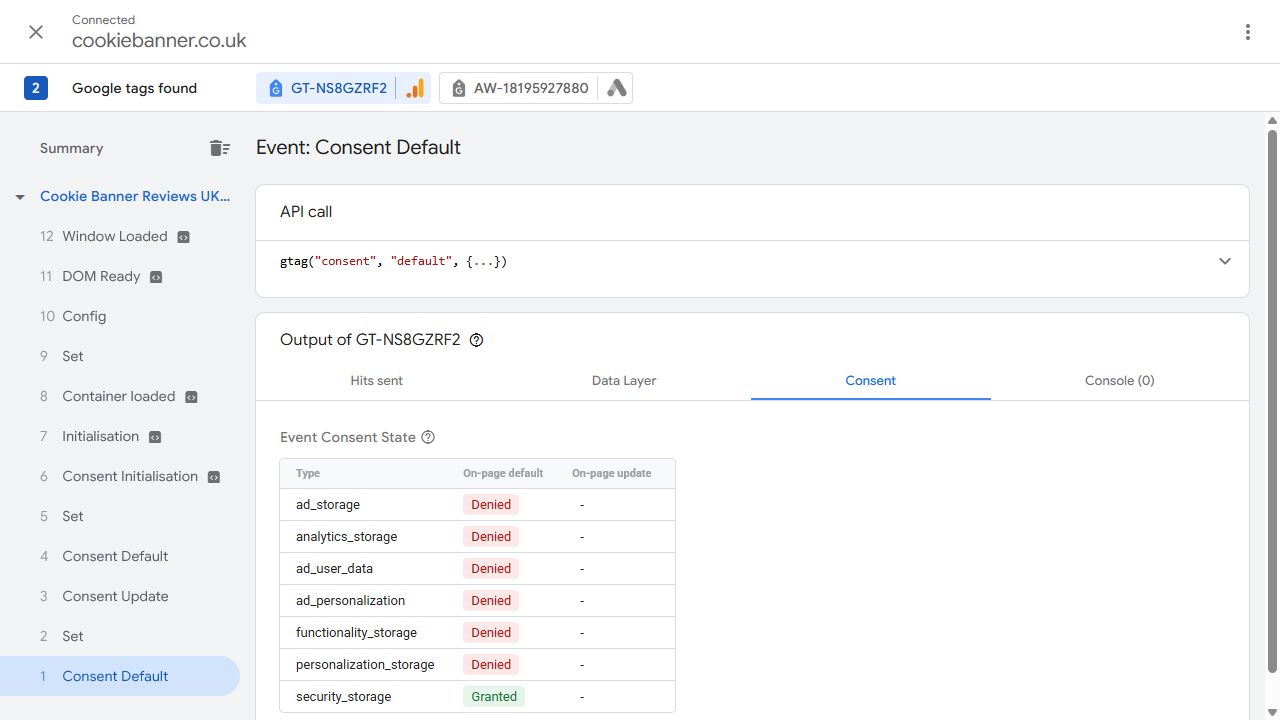
In event 3 of the same session, the update shows analytics storage Granted and the three advertising types Denied. Read the capture conditions and full explanation before drawing a conclusion from those values.
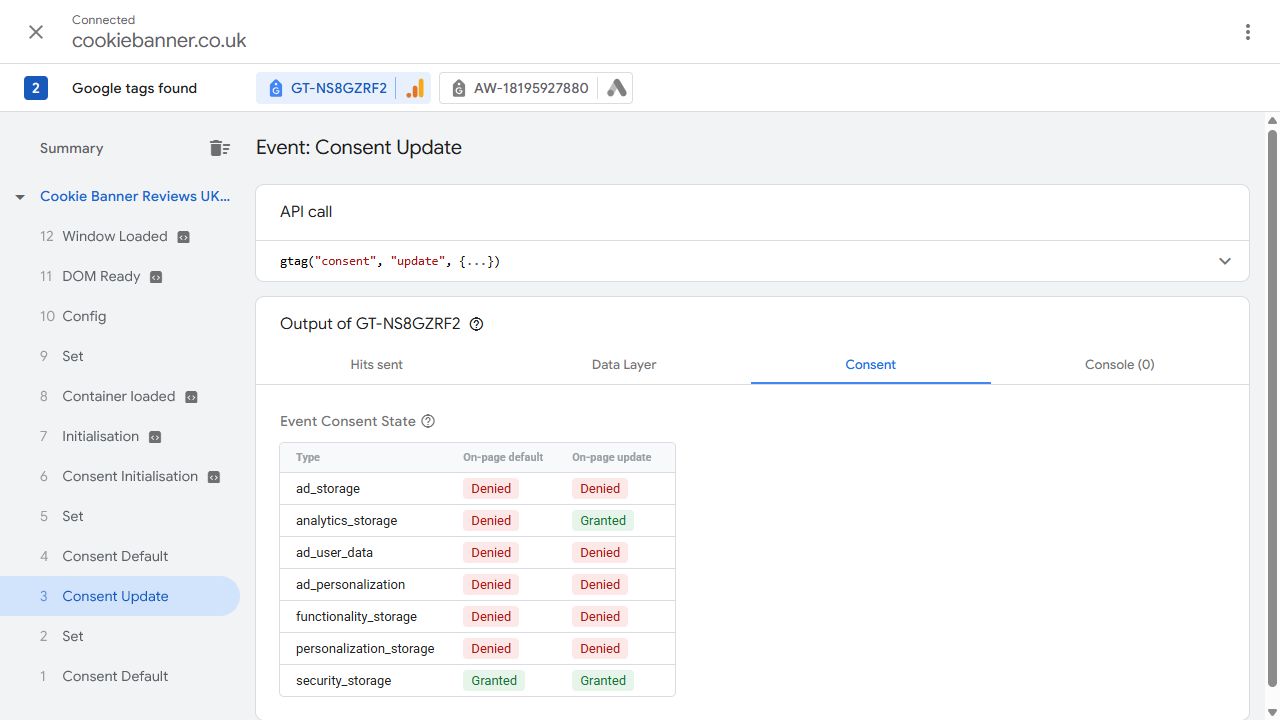
Evidence boundary: these captures show values for selected events and a selected Google tag. They do not prove cookie writes, request contents, conversion accuracy, every tag or every visitor journey. Additional default events are visible in the timeline and also need review in a complete investigation.
Technical method checked against Google’s Tag Assistant troubleshooting guidance and Basic and Advanced Consent Mode documentation, 24 October 2026. The screenshot date remains 4 October.
Common Consent Mode v2 Mistakes
Most problems are not caused by the idea of Consent Mode itself. They come from timing, duplicate tags, disconnected banners or assumptions about what the implementation is actually doing.
Default State Set Too Late
The website may begin processing measurement or advertising activity before the intended consent state is established.
Banner Not Connected
The visitor clicks Reject, but the Google consent state does not update correctly or a later page load restores a different state.
Duplicate Google Tags
GA4 or Google Ads may be installed through GTM, a WordPress plugin, an ecommerce integration and hard-coded scripts at the same time.
Advertising Signals Missed
Older setups may focus on analytics_storage and ad_storage but fail to review ad_user_data and ad_personalization.
Only “Accept All” Is Tested
The no-choice, Reject, granular-choice and withdrawal states often reveal issues that are invisible when only the accepted state is checked.
The 2026 Exception Is Over-Applied
The statistical-purposes exception does not automatically make every analytics, advertising or tracking setup consent-free.
Need a Practical Consent Mode Review?
A cookie banner can look correct while Google Analytics 4, Google Ads or Google Tag Manager still behave differently behind it. Our £395 Google Consent Mode audit compares consent signals, cookies, storage and network activity across agreed visitor choices. You receive a PDF findings report and a 30-minute walkthrough, with practical next steps for your developer or agency. No VAT is added; implementation is quoted separately.
- Consent Mode signals and default states
- Behaviour before a visitor makes a choice
- Reject and Accept behaviour
- GA4, Google Ads and GTM observations
- Possible duplicate tags
- Practical technical questions for your developer or agency
The audit is not legal advice, formal certification or a substitute for direct access to your CMP, GTM container, analytics property, advertising account or website code.
Google Consent Mode v2 FAQs
Does Google Consent Mode v2 replace a cookie banner?
No. Consent Mode communicates consent status to supported Google tags. It does not provide the cookie banner or consent controls used to collect a visitor’s choice.
What is the difference between Basic and Advanced Consent Mode?
Basic mode blocks Google tags before consent interaction. Advanced mode allows Google tags to load with relevant consent states denied and can send measurements without cookies until the visitor changes their choice.
What are the four main Consent Mode v2 signals?
The four most commonly relevant signals are analytics_storage, ad_storage, ad_user_data and ad_personalization.
Do UK websites still need consent for analytics in 2026?
Not every analytics implementation now has the same answer. A limited statistical-purposes exception exists, but it has conditions and does not cover wider advertising, profiling or tracking uses.
Does the statistical-purposes exception automatically apply to GA4?
No. Whether the exception is relevant depends on the purpose, configuration and use of the information. A website should not assume that installing GA4 automatically qualifies.
How do I know if Consent Mode is working?
Test the website before any choice, after Reject, after Accept and after changing or withdrawing consent. Check the actual Google consent states, cookies, storage and network behaviour rather than relying only on the banner appearance.
Official Guidance and Platform Sources
Consent Mode and UK storage-and-access rules continue to develop. For primary-source information, refer to the current official guidance from Google and the ICO.
Related Cookie Banner Guides
Continue with practical UK guidance on analytics consent, tracking pixels, cookie rules and platform-specific checks.
Start with a quick signal check
The free instant website checker looks for tracking and consent references in your public homepage source. It cannot test Consent Mode states or prove that tags respect visitor choices. Use it to identify questions for the browser testing described in this guide.
If your confirmed inventory has changed, update the policy with the free UK cookie policy generator, then review the wording against the website.
Need Help Reviewing Your Consent Mode v2 Setup?
Start with a free initial check of your public website and visible tracking signals. Send your website URL and the Consent Mode question you want answered. For consent-state, storage and network testing, see the £395 Google Consent Mode audit scope. Any paid work is agreed before you decide.
This is practical website guidance only and is not legal advice or formal compliance certification.